Schedule a meeting on web
Matrx provides multiple ways for you to schedule a meeting. On Matrx Apps, you can schedule a meeting for yourself, or you can schedule a meeting for your boss as a meeting assistant. On Matrx Admin Portal, if you are an admin, then you can schedule meetings for everyone in your enterprise.
Prerequisites
- Business or Enterprise plan.
- Admin access with relevant permission
Getting Started
- Sign in to the Matrx admin portal.
- In the navigation menu, unfold Meeting Management, click Upcoming.
- On the upcoming list, click the Schedule a Meeting button.
Schedule a Meeting on Web
Fill in the following form and then you can schedule a meeting right away.
- Schedule for: Select the person that the meeting is scheduled for. This person will be the host of the meeting. If this person is in multiple enterprises, then you have to be careful to decide for which enterprise you are scheduling the meeting.
- Topic: Enter a topic for your meeting.
- When: Select the date and time for your meeting. After scheduling, you can join the meeting before the meeting time, while if you join the meeting before the meeting time, and you ended the meeting, then you can't join in again.
- Time Zone: Select the time zone by clicking on the droplist. By default, Matrx will set the time zone with the default time zone on your laptop.
- Recurring Meeting:
- Does not repeat: Selecting this, you are scheduling a one-time meeting.
- Daily: By Selecting this, you are scheduling a meeting that will repeat every day. Besides, you can set if the meeting is repeated every 1 - 15 days. And you can define when will the recurring meeting ends. You can select if it ends by a certain date or after several occurrences.
- Every weekday: By Selecting this, you are scheduling a meeting that will repeat every weekday. By default, the weekday means Monday to Friday. Besides, you can modify the days in a week to custom a weekday. And you can define when will the recurring meeting ends.
- Weekly: By Selecting this, you are scheduling a meeting that will repeat every week. Besides, you can set if the meeting is repeated every 1 - 5 weeks, and on which days of a week will the meeting repeat. And you can define when will the recurring meeting ends.
- Monthly: By Selecting this, you are scheduling a meeting that will repeat every month. Besides, you can set if the meeting is repeated every 1 - 3 months, and on what day of a month will the meeting repeat. And you can define when will the recurring meeting ends.
- Organizer: The person who scheduled the meeting. The organizer is the person the meeting is scheduled for by default. And the organizer can be changed to everyone in the same enterprise as the host. The Organizer can receive the meeting scheduled message from the meeting assistant.
- Open to: This decides who can join the meeting .
- Everyone: Everyone can join the meeting if they have the meeting information.
- Users in my workspace only: Only the users in the same workspace as the host can join the meeting if they have the meeting information.
- Invited users only: Only the users that are invited by the host or the person who scheduled the meeting can join the meeting.
- Invite Participants: When scheduling a meeting, you can invite the users in your entire enterprise to join your meeting. Those participants that you invited will receive the meeting message from the meeting assistant. And they can reply if they can join your meeting or not, or if they can't decide right now. Besides, when the meeting start time is due, those participants that have not rejected your invitation will be calling to join the meeting.
- Advanced Options
- Meeting ID: By default, you will schedule a meeting with an automatically generated meeting ID. This kind of meeting ID is different every time you schedule a new meeting.
- Meeting Password: You can change the automatically generated meeting password to a password that you like.
- Meeting Security Enhancement: This feature is disabled by default. If enabled, then the meeting participants are required to input the meeting password even when joining the invite link.
- Waiting Room: This feature is enabled by default, which means the participants would enter the waiting room first and can join the meeting only when admitted by the host.
- Mute Participants Upon Entry: This feature is disabled by default. Enabling this feature will mute all the participants upon their entry into the meeting.
- Turn off Participant Video: This feature is disabled by default. Enabling this feature will turn all the participants' videos off upon their entry into the meeting.
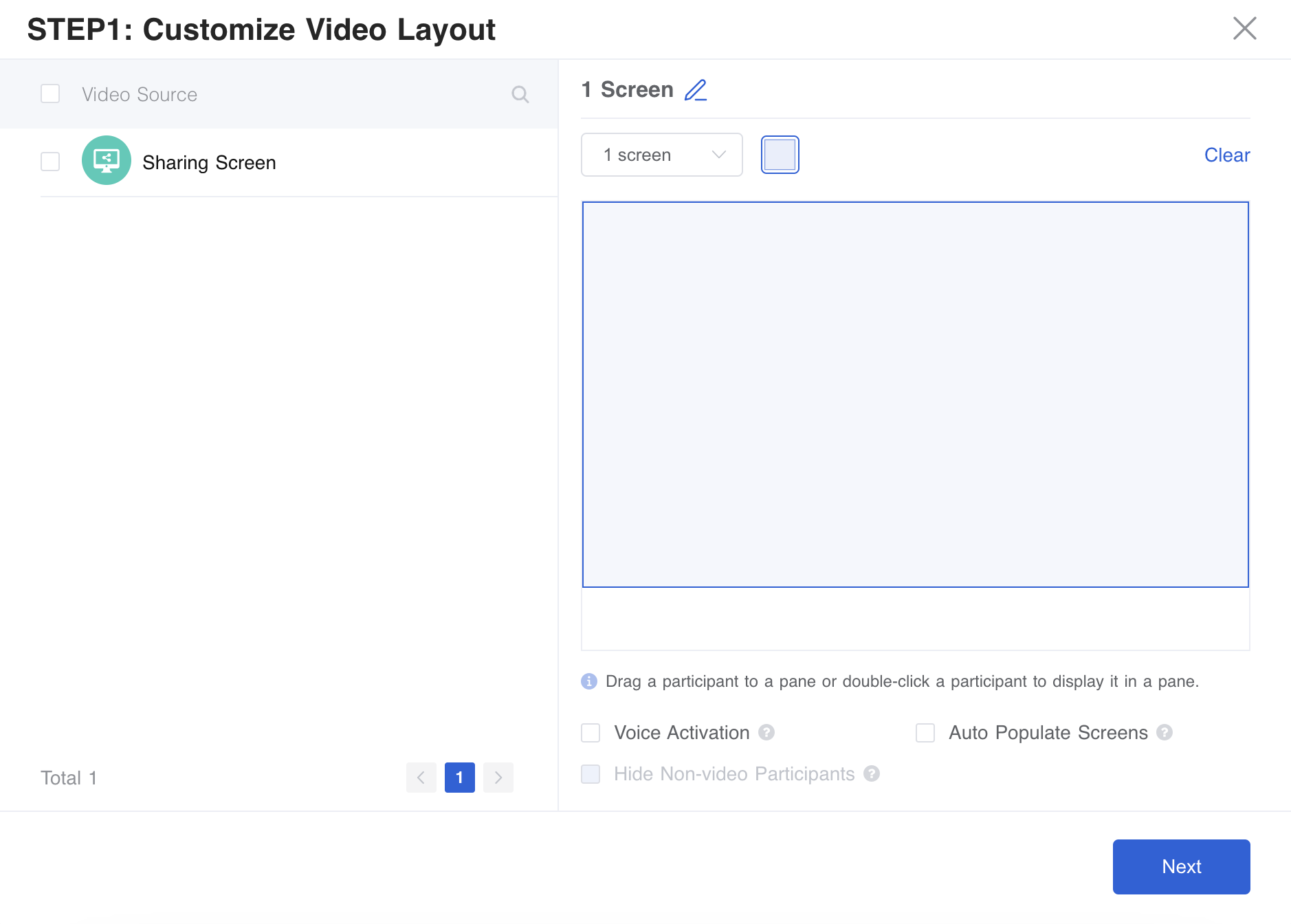
- Video Layout: This feature is used to set custom layouts and apply the layout to all the meeting participants or selected participants. If no custom layout is set up, the default speaker view will be displayed.
- To set a custom layout, you can click Add a Layout.
- Drag the invited user or hardware to the pane where you want the user to be displayed on the meeting layout